Subscribe Now: standard

Disclaimer

DISCLAIMER

All 'characters' on this blog are fictitious
and bear no resemblance to any 'character'
living or dead.

Search For Your Ubuntu Package.

Facebook Badge

Showing posts with label Internet. Show all posts

Saturday, July 2, 2011

A Facebook Friend Is A Friend Indeed!

...well that's what Mark Zukerberg wants us to believe, and with more than 500 million users taking on the social networking bandwagon, that seems to be the case. But is it about networking , socialising or socialising for networking ? I know I sometimes talk ( or write ) nonsense.
Back to Ubuntu.
There's a very interesting application in the 'Ubuntu Software Center' that builds a graph out of your social network.Its called 'Facebook Friends Graph'. Installation is pretty straight-forward. Just search for the package 'fbfriendsgraph' and install it.
It works its way by creating an undirectional graph connecting nodes representing your friends. A mutual relationship between your friends is what forms an edge of this graph. Enough of discrete structures now . A pretty simple algorithm , though.
The graph creation is a pretty resource intensive process. Well, that's what the application warns you about before creating the graph. So , if you are a very 'friendly' guy, be ready to wait for that portable network graphics image to load. Did you know what the acronym 'png' stood for ?


Wednesday, June 29, 2011

I need to develop my J2EE application in Ubuntu


First things first : this is not for those not so geeky and nerdy wannabes who just can't move away from the comfort of using a Mac or a Windows system. Not to say that Ubuntu or Linux is not a comfort zone; but you surely need an anchor to take you to the shore.

Now , if you've really worked on a project in J2EE, then you surely would have used an IDE ( hats off to you, if you've used notepad to work on a J2EE project ). NetBeans ? Well its not really a coffee making machine but an IDE ( God help you if you've never heard of it ).

Let's get serious now. Can we use NetBeans to develop a web application on the Ubuntu platform ? Yes , we can! ( what...who Obama ? , we are discussing Ubuntu here ) . NetBeans for Ubuntu in available in the 'Synaptic Package Manager' . You don't need a screenshot for this , do you ? The next thing you require is the Java Development Kit ( jdk ) .Just search for 'jdk' and install 'sun-java6-jdk'.

Now you need to have that web-server that you would use to deploy your application.Download Java EE 6 SDK Update 2 from the link provided at the bootom. Again an issue here ? How do you install a file with '.sh' extension. Well, its not rocket science. Just right click on th file and under the 'Permissions' tab , 'Allow executing file as program'. Now just double click on the file and 'Run' . Keep track of the GlassFish installation directory.


To start working on a project, launch 'NetBeans' . Use 'File' -> 'New Project'. Ready for a surprise! No 'Java Web' to choose from as an option. Well, things are again very simple. Just click on the 'Tools' -> 'Plugins'. Under the 'Available Plugins' tab, search for 'Java web' and mark it for installation. Don't worry about dependencies. Like the 'Synaptic' let 'NetBeans' take care of it.


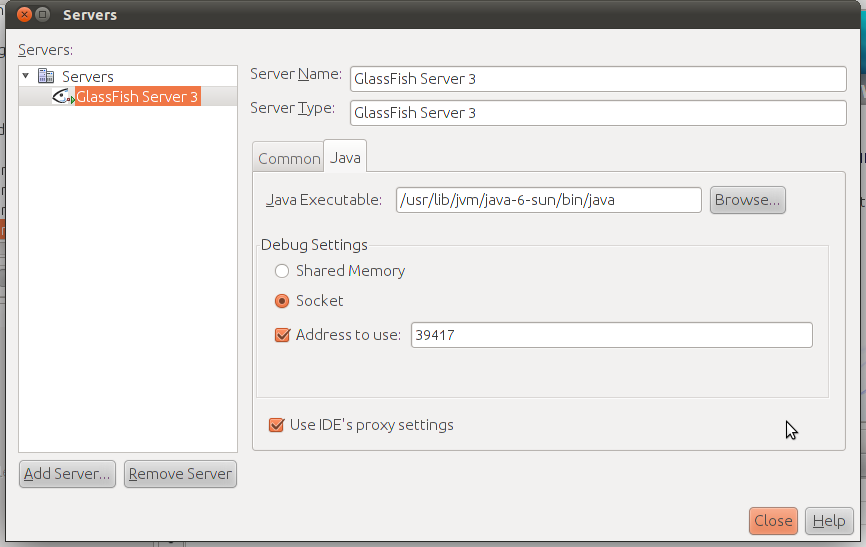
Now there are two more steps you need to perform to start working. You need to add a server. Go to 'Tools' -> 'Servers' and 'Add Server' . Choose 'Glassfish Server 3' . Provide the directory of the server ( I asked you to keep track of it ). Once the server is set , click on the 'Java' tab and provide the path to the 'Java Executable'. Well , I again come into the picture . This path is '/usr/lib/jvm/java-6-sun/bin/java'. You'll have to move one level up from your home directory to follow this path.


Yeah! It's finally over. Start working on an application now. I just did .

p.s : There's hardly anything that can not be accomplished on Ubuntu. Just take your time. You don't need to be an 'engineer' ( not one of those with that Er. prefix at least ) to accomplish this.

Click here to download Java EE 6 .

Sunday, June 26, 2011

Download web videos in Ubuntu

Thinking of downloading that video you just saw. Well, there's no dearth of websites that allow you to copy and paste the URL of the page hosting the video and voilĂ ! you have it in your videos folder.

But obviously things are not that simple for you windows guys making a transition to Ubuntu.

Ubuntu users need to install a Java plug in that actually loads an applet and downloads that video for you ( not getting into what's an applet thing ).

Let's make things really simple.Just open the 'Synaptic Package Manager' and search for 'java'. As usual a long list would be returned. Just mark the package titled 'sun- java6-plug in'. You have in the screen shot right here.Let the 'Synaptic' take care of dependencies while you enjoy that coffee of yours ( well, net speeds here make it really possible ).


Now we are set. Just copy the URL of the page hosting the video you wish to 'have' an open one of those websites ( well keepvid.com is what I use) . You would have to a bit patient here. Choose the resolution and 'save target as' .


As usual , keep in mind those copyright issues ( actually , I don't care ).


p.s : pretty elementary stuff huh! Wonder what took us so long.

Saturday, October 23, 2010

Getting Wi-Fi up and running in Ubuntu!


If you've been facing problems getting your wi-fi connection up and running in Ubuntu 10.10, look no furthur.
Resolving such issues is a matter of installing and activating third party proprietary drivers.

Go to System >> Administration >> Additional Drivers.


What you get here is a listing of available wireless drivers. If not activated, activate them by clicking on the 'Activate' button at the bottom right of the window.


Installing and activating these drivers would resolve Wi-Fi issues immediately.The 'NetworkManagerApplet' would notify in no time.


Monday, August 23, 2010

buzzbird - Live,Tweet,Breathe,Open Source.


A graphic designer in Tokyo recently posted a Twitter message on his Twitter account.Little did he know that it was a 'landmark' message. It was the 20 billionth tweet posted on the micro blogging site since its inception in 2006.


So who's going to post the 30 billionth tweet ? Just keep on updating others and who knows you might become a part of the tweet-history books.
Tweeting on Ubuntu is a breeze. Buzzbird is an open-source application that allows you to tweet right from your desktop.


The initial window allows you to enter your screen name and password.All recently posted tweets come up arranged chronologically.
To post a new tweet , simply click on the 'Post' button. The top of the window provides a text entry area.


Taking the cursor over a specific tweet does provide a 'Delete this Update' option but this just does not seem to work.


Personalize Buzzbird using the Preferences dialog under the 'Tools' menu.This section allows you to add Twitter accounts,personalize notifications for new messages.Update intervals and retweet formats my be altered under the 'General' tab.


Visit the Buzzbird homepage by clicking here.

Saturday, March 6, 2010

Furthur Uncomplicating The Uncomplicated Firewall!


Worried about unauthorized access to your system or other security issues ? Let Ubuntu handle it with its inbuilt "UFW" or the "Uncomplicated Firewall" , which is the standard firewall configuration manager in Ubuntu.
"UFW" is a command line based firewall manager.To furthur uncomlicate matters , you could a GUI based version from the "Synaptic Package Manager".


"GUFW" finds itself under the "Administration" menu. Using a simple check box, the firewall can be enabled or disabled. By default "GUFW" would deny access to any program or service. The default behaviour may be altered by using the drop-down menu provided alongside.


To allow or deny access to a specific program or service, click on the "Add" button at the bottom right corner of the window. Using different configuration options , you would , in a way,be creating a rule for a program or a service.
The list of programs obviously includes file transfer programs like torrent clients and services include various protocols like FTP, POP ,IMAP etc.


GUFW also provides log creation services . Use the "Edit" menu to enable logging options.

Thursday, July 9, 2009

User Agent Switcher For Firefox


'User Agent Switcher' is an extension for the Mozilla Firefox browser that lets you browse a website that is not compatible with it.
Sometimes,you may come across a webpage which is compatible with the 'Internet Explorer' only.In such situations,'User Agent Switcher' switches the user agent to that of a compatible browser.


The default installation provides three switches-Internet Explorer,Netscape and Opera.
'User Agent Switcher' is displayed under the 'Tools' menu of the Firefox web browser.
It can be installed from the 'Synaptic Package Manager'.

Tuesday, January 13, 2009

MidBrowser - A mobile web browser baed on Firefox


'Midbrowser' gives you a very light and 'mobile' web navigation experience with it's uncluttered interface.At first glance ,it looks as if there is something missing. But 'MidBrowser' provides most of the features of a standard web browser.
At the bottom of the browser window,you get the standard address bar, the back-forward, Refresh and stop buttons.You also get an integrated search bar allowing you to search popular services and sites like 'Google','Yahoo!','Wikipedia' and 'Ebay'.'Zoom-in' and 'Zoom-out' buttons are also provided. The 'Grab' and 'Drag' button can be toggled from the last button in the row.


'MidBrowser' is very light on resources and runs faster than the 'Firefox'.
Install 'MidBrowser' from within the 'Synaptic Package Manager'. Search for 'midbrowser' and mark for installation.

Wednesday, January 7, 2009

'Arora' Web Browser - A lightweight Qt based web browser.


Arora is a QT based web browser for your Ubuntu desktop. It has all the standard features that you look for in a web browser. Qt is a c++ based toolkit that provides cross platform application development.It provides a single-source portability across Windows, MAC and most Unix variants.You will surely feel a smoother interface while navigating in the 'Arora' web browser.It has a n integrated web search feature ( Google ) that you get in other standard browsers like Firefox and IE.


'Private Browsing' allows you to browse the web, without leaving behind any browsing and download history.Searches are also not added to the pop up menu and sessions are also not saved.
'Arora' also supports the usual tabbed windows.

Monday, October 20, 2008

'GNOME Transfer Manger' for dial-up connections.


'Gnome Transfer manager' is a download manager designed especially to work on dial-up networks.It has all the features of a usual download manager.It allows users to download multiple files simultaneously from the web.Downloads can be paused at any moment and file transfer can be retrieved once connected to the internet.It performs all its tasks using 'wget' download manager as its back-end.


GTM is available in the 'Synaptic Package Manager'.Search for 'gtm' and mark for installation.Launch it from the 'Internet' menu.Start a new download by clicking on the first button in the toolbar.Simply provide the download URL and start downloading.
To configure the default download directory and proxy servers,click on the 'Settings' menu and open 'Preferences'.

Wednesday, October 1, 2008

Miro - Internet TV For Ubuntu!


Miro provides a complete online video viewing experience.It is a video feed reader.Miro has a very attractive interface.It allows you to download your favorite videos from various video sharing sites like you tube,Blip.tv,DailyMotion and Yahoo! video.It works with Bit Torrent feeds also.Just type in a keyword in the search bar at the bottom left and get your video.
A number of video channels or feeds are provided by default that provide an interesting mix of videos for your viewing pleasure under the Starter Channels folder.Custom folders can also be created to group together some channels.Some of these are high-definition channels and consume lot of bandwidth.Users can add new channels by clicking on the Channels menu.Simply provide the link of the channel.Use Miro to get your pod casts from the web.These can be you tube links and channel addresses.Playlists can also be created in Miro.
To edit the preferences of a particular channel (feed),click on it in the left sidebar and then click on settings at the top right of the window.
To prevent a channel from consuming unlimited bandwidth ,keep the AUTO DOWNLOAD option OFF.Channels can be easily removed,renamed and updated by right clicking on the feed address in the left sidebar.Miro also maintains a library of local videos.So it acts as a video player with usual functionality for your desktop.
To customize folders for the downloaded videos,disk space usage click on Options under the Video menu.

Monday, September 29, 2008

Image Zoom extension for firefox.


Image Zoom provides a large number of zoom-in and zoom-out options in the context menu of images that you view in the FireFox web-browser.This extension works with Thunderbird also.
Right click on an image in your browser and choose "Zoom Image".You get to choose zoom factors ranging from 10% to 400%.Custom zoom factors and dimensions can also be set.So view image in their full glory with the "mozilla-imagezoom"
extension for Firefox.
To configure Image Zoom, got to the Tools menu in Firefox and select Add-Ons.
Now customize Image Zoom.Choose the context menus you want under the "Context Menu Items" tab.Zoom in/Zoom out factors can be edited under the "General" tab.

Image Zoom can be installed from the Synaptic Package Manager.Search for "mozzila-imagezoom" and mark for installation.

Tuesday, September 23, 2008

Download Manager For Ubuntu


Downloader for x is a full featured download manager for your ubuntu system.It supports both FTP and HTTP protocols and has a simple graphical interface.It allows you to schedule downloads and setup download queues.You can use proxies for both FTP and HTTP.Once you open the Downloader for X ,click on the first button to create a new download (File>>New Download).Now give the URL or the download link of the file to be downloaded.A "MyDownloads" folder is automatically created for your file but the downloaded file can be saved to a custom location also.The file to be downloaded can be split in to a number of parts.Get this option under the Common tab.If you wish to tinker with the default settings then uncheck the radio button from the bottom of the window.Similarly you can edit the FTP,HTTP and proxy settings under the respective tabs.The option to use the default settings is enabled by default.If you wish to schedule a download then go under the Time tab.Use the calender provided to select the date of the download and select the corresponding time to start the download.
To create a new download queue click on the Queue menu.You need to give a name to this queue.The names of the queues created appear under the main queue on the left side of the window.Highlight a queue to add downloads to it.You can move individual downloads at the top of queues also.
To set general preferences for the program click on the Options menu.General options let you customize the interface of the download manager.Change themes ,colors of the graphs and the sounds produced from here.You can set different sounds for start up of the program,failed downloads,completed downloads etc.Clipboard can also be integrated with the download manager.There are three speed levels provided.The third one downloads a file at the maximum possible speed.
You may also want to integrate Downloader for X with the Firefox browser.To do so ,install the "1Flash Got" Add-On in Firefox.select Downloader for X as the preferred download manger from the Flash Got options in Firefox.

Install Downloader for X from the Add or Remove Section.Get a reference from the screenshot.If you do not find it ,reload your software database from the Synaptic Package Manager.

Friday, September 19, 2008

gURLChecker


gURLChecker is a graphical links checker.
It does some website verifications that are presented in a nice graphical way.On opening gURLChecker click on NEW to start a new verification.Now enter the address of the link or website to be verified.Check various options that follow according to your convenience.An Authentication mode is provided that can be used if the page you wish to verify requires authentication or signing in.After getting the web address,gURLChecker does a quick check of the site or page and presents you a report.The process is very quick and just takes a few seconds.It may take a longer time to display the report if you retrieve some content from the web page.Under the check report you get to see the total number of links checked,good,bad and ignored links.Checkout the security information about the page under the Page Information section.Click on the Edit menu to choose preferences.Get down to the Filter tab to customize you content retrieval and rejection using file format extensions for images,documents,directories,domains and protocols.

Security checks can be verified under the Security tab.Once you decide to quit gURLChecker ,you get an option of saving your project.If you wish to verify a web page before browsing or downloading something from it,check it with gURLChecker.
Install gURLChecker from the Synaptic Package Manager.

Saturday, September 6, 2008

Google Chrome for ubuntu/Linux


If you live on the planet earth,chances are that you have already heard about the new web-browser launched by Google named Chrome.So now you have even more options to choose from.Chrome is still in beta phase.As Google states,it combines minimalist design with a sophisticated technology.
Is there a version for Linux?The answer is that a Linux version is not available as of now and is under development.Google has plans to release the Linux version soon.At this moment only the Windows version is available.Although you may use Wine to install the Windows version in Linux but a separate Linux application would be a different experience.
The Windows version of the browser released is very impressive.Chrome has a great interface providing a brilliant navigation experience.If you wish to get notified on the release of a Linux version of Chrome by Google,click here.
Waiting to install Chrome in Ubuntu.

Tuesday, September 2, 2008

YARSSR


Get a very simple and efficient RSS reader for the notification area of GNOME and KDE.YARSSR does its job very well.Once you click on the YARSSR icon in the Internet menu,it goes to the notification area.Initially you need to setup you feeds.Right click on the YARSSR icon in the notification area and select Preferences.Here you can create a new feed address and also edit or delete existing addresses.
You can even enable or disable a particular feed.You can also import an Ompl file.Setup your update interval time,the number of headings displayed and the browser to be used for browsing.

You can also go offline from the notification area.Right click to do so.

Tuesday, August 26, 2008

Googlizer-Instant Google Search!


Get instant Google Search for your ubuntu desktop with Googlizer.
While reading some text or browsing a web page you may come across a term or a word that you do not know much about.Now,instead of searching for such words by typing in the Google search bar,you can just highlight the word and click on the Googlizer icon.Googlizer does a Google search of the highlighted part.
You can even search for more than one word by pressing the CTRL key while highlighting the words.

Install Goolizer from the Synaptic Package Manager.You can access it from the Internet menu.For the best use of Goolizer place it on a panel.
So just highlight the keyword and click the Goolizer icon on the panel.This would open a firefox window with the relevant Google search entries.

Saturday, August 23, 2008

Twitter Applications For Ubuntu


Do you twitter?If yes, then get a twitter client right on your ubuntu desktop.There are a few applications available in ubuntu that let you send twitter messages from your desktop without using a web browser.Let us first of all talk about the Prism Web Applications.Twitter is web application available as a part of the Prism set that you can install from the Synaptic Package Manager.The Other standard applications that let you twitter are Twitux and gtwitter.

Twitux is one such application that lets you send twitter messages from your desktop.Click here to download Twitux.Access it from the Internet menu.Once opened it rests in the notification area and notifies you on new messages.It fetches updates itself.Give your account information and start twittering.It also has an inbuilt spell checker.It also features a timeline auto updating of Friends ,user ,public and twitux.You can also set a time for auto updating.
Then we have the gtwitter which you can install using the Synaptic Package Manager (search for twitter).This also has pretty much the same kind of features and rests in the notification area.You can choose the Source on startup among the friends timeline and the public timeline.This application is still in beta phase.

Use both of them and decide the one you like.Please post your review in the comments box.Also try the prism option.

Saturday, August 9, 2008

Opera Web Browser.


Opera,the popular web browser is available as a .deb package for an easy installation in your ubuntu machine.For all of you out there looking for an alternative to the Firefox web browser,Opera is the answer.The latest version,opera 9.5 is loaded with features that make for a very good browsing experience.It is probably the fastest browser available .Check out the Speed Dial section that lets you keep up to 9 web-sites "speed dial" ready.These are visual bookmarks of your favourite websites.
Opera 9.5 is based on a new browser engine that renders web pages quickly and also loads Java scripts faster.Start up time is also impressive.
For all of you who use an e-mail client like Evolution and Thunderbird,Opera provides an inbuilt e-mail client for your chat and mail accounts.
A great feature for all those who download from torrents is an inbuilt bit-torrent support.There is no need for a separate application for mails and torrents.The download manager or the "Transfers" section has all the regular features.
Forget keyboard shortcuts and use mouse gestures. A mouse gesture is performed by holding the right button and moving the mouse in an easy pattern.These gestures are completely customizable and make navigation pretty easy.
Quick Find:Opera not only remembers the addresses but also the contents of the web pages.
Search: There are Inbuilt search fields like Google,Amazon,Yahoo,Wikipedia,ebay and bit torrent in the upper right corner.For quick search from the address bar just type g followed by the keyword to be searched and hit enter.You can also create your own Web search from any search field on the Internet, simply by right clicking on a search field and choosing “Create Search”.
Customize you Opera with new themes,widgets(widgets.opera.com) and panels.Go to the appearance section for new themes.
There are other regular features like tabs and session saving options.
Security:Opera 9.5 is a pretty secure browser with its Fraud Protection enabled by default that provides provides protection against phishing.
Zoom web pages using the zoom button at the bottom right of the opera window.
Download Opera 9.5 now and give it a try.