Subscribe Now: standard

Disclaimer

DISCLAIMER

All 'characters' on this blog are fictitious
and bear no resemblance to any 'character'
living or dead.

Search For Your Ubuntu Package.

Facebook Badge

Sunday, July 31, 2011

Getting Back To The Ubuntu Menu.


Not getting used to the new Ubuntu Launcher ? Welcome! to the club .
The new launcher may hold shortcuts to your favorite programs , files and folders , but it is also a security concern. The 'Files and Folders' launcher includes your recently viewed files but there's no 'Clear recent Documents' option. The launcher may add some glamor to your system but it obviously includes a processing overhead.

Getting back to the classic Ubuntu menu is easier than you would probably think. Just choose 'ubuntu classic ( no effects )' as your session the next time you reach the log in window. ( Now,how do I capture a screen shot before logging in ? Let me know if you know a way out).


But this would obviously work if your system asks for a password at startup and you do not get to log in automatically.You won't have to do this every time you log in. Just whenever you feel like making a switch.

To set a default session , go to 'System' -> 'Administration' -> 'Login Screen' and select the session you want.

Saturday, July 30, 2011

Florence Virtual Keyboard

Woke up in the morning just to find out that the navigation keys of your keyboard are not working ? Things can't get worse than this. No social networking ? no Google or other downloads ? Probably your keyboard had its fare share of coffee yesterday.
Well, your world should not really stop. It may get 'virtual' though.


Get the 'Florence Virtual Keyboard' from the 'Ubuntu Software Center'. Install it even if your keyboard is working fine. It might come in handy someday.


With a pretty smooth and intuitive interface, 'Florence' provides a great typing and navigational experience. Use your mouse to click on the keys and type on the currently active window. It comes loaded with a number of features which let you configure the looks and extend your keyboard. The key with the 'tools' logo lets you configure this keyboard. You can add additional keys , change the colors and opacity of the keyboard.

Florence provides very interesting 'Behaviour' patterns. Check out the 'Timer' and 'Ramble' patterns. Though it may take time getting used to these patterns.
But there are certain things even 'Florence' can't sort out for you. What if you have to switch to the Windows OS at the Grub startup. You can use the 'End' and 'Home' keys to find your way out of this predicament. Hope these two work , at least.

Saturday, July 2, 2011

A Facebook Friend Is A Friend Indeed!

...well that's what Mark Zukerberg wants us to believe, and with more than 500 million users taking on the social networking bandwagon, that seems to be the case. But is it about networking , socialising or socialising for networking ? I know I sometimes talk ( or write ) nonsense.
Back to Ubuntu.
There's a very interesting application in the 'Ubuntu Software Center' that builds a graph out of your social network.Its called 'Facebook Friends Graph'. Installation is pretty straight-forward. Just search for the package 'fbfriendsgraph' and install it.
It works its way by creating an undirectional graph connecting nodes representing your friends. A mutual relationship between your friends is what forms an edge of this graph. Enough of discrete structures now . A pretty simple algorithm , though.
The graph creation is a pretty resource intensive process. Well, that's what the application warns you about before creating the graph. So , if you are a very 'friendly' guy, be ready to wait for that portable network graphics image to load. Did you know what the acronym 'png' stood for ?


Wednesday, June 29, 2011

I need to develop my J2EE application in Ubuntu


First things first : this is not for those not so geeky and nerdy wannabes who just can't move away from the comfort of using a Mac or a Windows system. Not to say that Ubuntu or Linux is not a comfort zone; but you surely need an anchor to take you to the shore.

Now , if you've really worked on a project in J2EE, then you surely would have used an IDE ( hats off to you, if you've used notepad to work on a J2EE project ). NetBeans ? Well its not really a coffee making machine but an IDE ( God help you if you've never heard of it ).

Let's get serious now. Can we use NetBeans to develop a web application on the Ubuntu platform ? Yes , we can! ( what...who Obama ? , we are discussing Ubuntu here ) . NetBeans for Ubuntu in available in the 'Synaptic Package Manager' . You don't need a screenshot for this , do you ? The next thing you require is the Java Development Kit ( jdk ) .Just search for 'jdk' and install 'sun-java6-jdk'.

Now you need to have that web-server that you would use to deploy your application.Download Java EE 6 SDK Update 2 from the link provided at the bootom. Again an issue here ? How do you install a file with '.sh' extension. Well, its not rocket science. Just right click on th file and under the 'Permissions' tab , 'Allow executing file as program'. Now just double click on the file and 'Run' . Keep track of the GlassFish installation directory.


To start working on a project, launch 'NetBeans' . Use 'File' -> 'New Project'. Ready for a surprise! No 'Java Web' to choose from as an option. Well, things are again very simple. Just click on the 'Tools' -> 'Plugins'. Under the 'Available Plugins' tab, search for 'Java web' and mark it for installation. Don't worry about dependencies. Like the 'Synaptic' let 'NetBeans' take care of it.


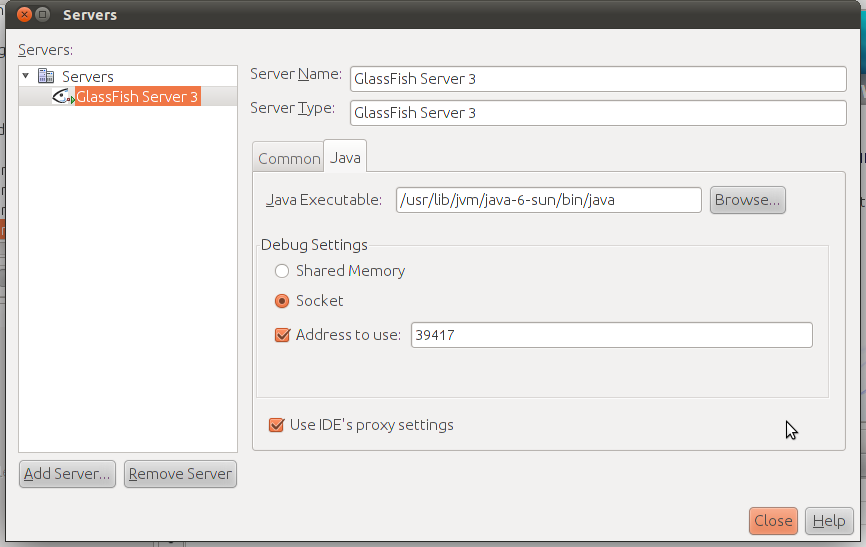
Now there are two more steps you need to perform to start working. You need to add a server. Go to 'Tools' -> 'Servers' and 'Add Server' . Choose 'Glassfish Server 3' . Provide the directory of the server ( I asked you to keep track of it ). Once the server is set , click on the 'Java' tab and provide the path to the 'Java Executable'. Well , I again come into the picture . This path is '/usr/lib/jvm/java-6-sun/bin/java'. You'll have to move one level up from your home directory to follow this path.


Yeah! It's finally over. Start working on an application now. I just did .

p.s : There's hardly anything that can not be accomplished on Ubuntu. Just take your time. You don't need to be an 'engineer' ( not one of those with that Er. prefix at least ) to accomplish this.

Click here to download Java EE 6 .

Sunday, June 26, 2011

Download web videos in Ubuntu

Thinking of downloading that video you just saw. Well, there's no dearth of websites that allow you to copy and paste the URL of the page hosting the video and voilĂ ! you have it in your videos folder.

But obviously things are not that simple for you windows guys making a transition to Ubuntu.

Ubuntu users need to install a Java plug in that actually loads an applet and downloads that video for you ( not getting into what's an applet thing ).

Let's make things really simple.Just open the 'Synaptic Package Manager' and search for 'java'. As usual a long list would be returned. Just mark the package titled 'sun- java6-plug in'. You have in the screen shot right here.Let the 'Synaptic' take care of dependencies while you enjoy that coffee of yours ( well, net speeds here make it really possible ).


Now we are set. Just copy the URL of the page hosting the video you wish to 'have' an open one of those websites ( well keepvid.com is what I use) . You would have to a bit patient here. Choose the resolution and 'save target as' .


As usual , keep in mind those copyright issues ( actually , I don't care ).


p.s : pretty elementary stuff huh! Wonder what took us so long.

Sunday, October 31, 2010

Understanding the 'swap'.

While installing Ubuntu 10.10 Ubuntu 10.10 - the Maverick Meerkat , you surely would have had to reserve some area of the disk for 'swap' . But what is this 'swap' ? Here it goes: Swap is that area of the disk which the operating system ( kernel ) uses to store active processes before calling them again for running. This is actually a part of the switching process that happens in a multiprocessing environment. Check the status of your system's swap by typing ' free -m ' at the terminal.

Sunday, October 24, 2010

Logic Programming In Ubuntu


The 'YAP Prolog System' provides a great solution to your prolog programming needs in Ubuntu.Available in the Synaptic , simply search for 'yap and install.
To launch a prolog session , launch the terminal and enter 'yap' at the command line. This would take you right to the prompt where you could ask questions. But where's the database of rules and facts?
There are actually two ways of providing the relevant database to the compiler.In one of the modes , you can create a simple text file consisting of facts and rules and save it in your home directory. To let the compiler compile this file simply type '[file_name]' after the '?' prompt.Then you could ask relevant questions and get results.


I the second mode, you could provide facts and rules at the command line itself. To do this type in '[user]' after the '?'.Here 'user' is not your username. It has to be '[user]' only. Then to ask questions type Ctrl+d.


Saturday, October 23, 2010

Getting Wi-Fi up and running in Ubuntu!


If you've been facing problems getting your wi-fi connection up and running in Ubuntu 10.10, look no furthur.
Resolving such issues is a matter of installing and activating third party proprietary drivers.

Go to System >> Administration >> Additional Drivers.


What you get here is a listing of available wireless drivers. If not activated, activate them by clicking on the 'Activate' button at the bottom right of the window.


Installing and activating these drivers would resolve Wi-Fi issues immediately.The 'NetworkManagerApplet' would notify in no time.


Thursday, August 26, 2010

Creating banners in the Ubuntu terminal!


SCO UNIXware has a built in 'banner' program that creates a blown-up version of the characters you supply with the command.
However, Ubuntu does not provide this program. A workaround for this is a 'banner' clone called 'sysvbanner' that does the same job.
Simply search for 'sysvbanner' in the 'Synaptic Package Manager' and mark it for installation.
Banners are created horizontally using the '#' symbol.

Monday, August 23, 2010

buzzbird - Live,Tweet,Breathe,Open Source.


A graphic designer in Tokyo recently posted a Twitter message on his Twitter account.Little did he know that it was a 'landmark' message. It was the 20 billionth tweet posted on the micro blogging site since its inception in 2006.


So who's going to post the 30 billionth tweet ? Just keep on updating others and who knows you might become a part of the tweet-history books.
Tweeting on Ubuntu is a breeze. Buzzbird is an open-source application that allows you to tweet right from your desktop.


The initial window allows you to enter your screen name and password.All recently posted tweets come up arranged chronologically.
To post a new tweet , simply click on the 'Post' button. The top of the window provides a text entry area.


Taking the cursor over a specific tweet does provide a 'Delete this Update' option but this just does not seem to work.


Personalize Buzzbird using the Preferences dialog under the 'Tools' menu.This section allows you to add Twitter accounts,personalize notifications for new messages.Update intervals and retweet formats my be altered under the 'General' tab.


Visit the Buzzbird homepage by clicking here.

Tuesday, July 20, 2010

Minitube - There's life outside the browser.


The name makes it pretty obvious that this has something to do with Youtube.
'Minitube' is an application that brings your Youtube videos out of your web browser.
The initial 'minitube' window presents a search bar that lets you specify keywords . Enter a keyword and click on the 'Watch' button. Inclusion of high definition (HD) videos can be enabled by clicking on the HD button at the bottom right of the window.


Search performance is pretty impressive. The search bar even provides search suggestions as you type in the keywords.Search results are presented under three tabs- most relevant, most recent and most viewed.
Videos grabbed from Youtube form a playlist and can be played in a full-screen mode.
However, as we figured out, we could not playback videos in the Minitube client itself. The right portion of the screen supposed to playback videos only displayed a description of the video against a black background. This is not really the final release and is just a preview.


Monday, March 8, 2010

Bleach Your Ubuntu System!


Trying to figure out what's eating up your disk space ? Ever considered cleaning up logs, cache files, search indexes , and other such crap ? Send all such stuff to its rightful place - out of your system and reclaim your much valued disk space.
BleachBit is the application that you can install from within the 'Synaptic Package Manger' to 'bleach' your system. A very simple two-pane interface greets you when you launch 'BleachBit' from the 'System Tools' menu. The left pane of the window lists all the programs that could be cleaned to regain disk space.


The list includes torrent clients that create logs, temporary files, backup files and other unneccesary stuff.
'Bleachbit' also works as a privacy manager as it allows you to cleanup browser history, cookies, passwords and other session related stuff. Do not mark the 'places' operation as it would result in your Firefox bookmarks being deleted.

Take special note of the Apt section which refers to the directory that contains the packages already installed. This directory contains debian packages of already installed packages and may not be needed anymore. But a special access is required to clear this directory. Use the 'BleachBit(as root)' laucher from the 'System Tools' menu.This clean-up would probably free up maximum amount of space out of all clean-up options.


To preview the amout of space that could be freed up select an operation from the left pane and click on the 'Preview' button.
Click on 'Delete' to delete files.

Saturday, March 6, 2010

Furthur Uncomplicating The Uncomplicated Firewall!


Worried about unauthorized access to your system or other security issues ? Let Ubuntu handle it with its inbuilt "UFW" or the "Uncomplicated Firewall" , which is the standard firewall configuration manager in Ubuntu.
"UFW" is a command line based firewall manager.To furthur uncomlicate matters , you could a GUI based version from the "Synaptic Package Manager".


"GUFW" finds itself under the "Administration" menu. Using a simple check box, the firewall can be enabled or disabled. By default "GUFW" would deny access to any program or service. The default behaviour may be altered by using the drop-down menu provided alongside.


To allow or deny access to a specific program or service, click on the "Add" button at the bottom right corner of the window. Using different configuration options , you would , in a way,be creating a rule for a program or a service.
The list of programs obviously includes file transfer programs like torrent clients and services include various protocols like FTP, POP ,IMAP etc.


GUFW also provides log creation services . Use the "Edit" menu to enable logging options.

Sunday, February 14, 2010

Repair a messed up Ubuntu menu.


After installing KDE in ubuntu , the main menu of Ubuntu gets messed up with the KDE applications finding place among GNOME applications. Cleaning up the menu by bringing all KDE applications under one menu entry could be a tedious process if done manually.
Download the Gnome-menu-extended application by clicking here and install it.It's done!.Check the menu again.There would be a separate KDE menu entry for all KDE applications.This works for Open-Office applications as well. The other menus would be restored to the original form themselves.

Saturday, February 13, 2010

Get rid of obsolete kernels in Ubuntu.


Regular updates of Ubuntu install latest versions of Linux kernels. This, however is not accompnied by a removal of obsolete or older kernels. This kernels take up disk space and also add to the list of available kernels in the Grub list.
Earlier versions of "Startup-Manager" did allow users to limit the number of kernel entries to a specified number, but this does not work anymore.
"Ubuntu Tweak", in its latest avatar allows you to remove obsolete kernels from your system and free up disk space.


Launch it from the "System Tools" menu.Click on the "Package Cleaner" option under "Applications".Click on "Unlock" and provide the system password. Now click on "Clean Kernel". This would list out all the obsolete kernels. The would not include the current linux kernel.Select the kernels to be cleaned and click on "Cleanup".


Download the "Ubuntu Tweak" .deb package by clicking here.

Thursday, July 23, 2009

Wednesday, July 22, 2009

Fotoxx 7.7


Get The latest version of the Fotoxx digital image editor by clicking here.
Click here to read more about Fotoxx.

Tuesday, July 21, 2009

Capture Frames From A Video File With A 'GFrameCatcher'.


'GFrameCatcher' is an application that allows you to extract frames from your video files.Frames are generated automatically by this application and may be saved as a collection or as individual files.
After installation, launch 'GFrameCatcher' from the 'Sound & Video' menu.


To save an individual file,click on the 'Save' button at the bottom or 'Extract To File' using the 'Extract' button. Use 'Extract To All' to save all the extracted images in a folder.
To change the configuration of the program ,click on the 'Preferences' button.Here, you could change the image width,height, margins and other parameters.


To alter the number of frames to be extracted and the time interval between individual frames, click on the 'Frames' tab.
To re-extract frames, click on the 'Refresh' button.


Click here to download 'GFrameCatcher'

Monday, July 20, 2009

Let Figaro Remember Your Passwords.


'Figaro's Password Manager' is another password manager that can be installed from the 'Synaptic Package Manager'.
After installation , launch it from the 'Accessories' menu. A master password needs to be provided to encrypt all other passwords.So, it is extremely crucial to remember the master password.


Once the master password is set, you can start adding passwords by clicking on the 'New' button.An adequate number of fields are provided to keep a password safe.These include the 'Title','URL','User Name','Password','Category','Notes' and 'Launcher'.


A new password can also be generated by clicking on the 'Generate' button.Once again, a large number of options are provided to configure password generation.


Passwords may also be imported through password files.Launchers (web,ssh and generic commands) may also be created.
To find for a particular entry,click on the 'Find' button under the 'Edit' menu.
To enable a tray icon, open the 'Preferences' under the 'Settings' menu.